
 Español
All interfaces for FirmaSAT require the file
diFirmaSAT2.dll
to be somewhere on the
library search path
of the target machine.
The best place is either in the same directory as your application's executable or in the system directory.
The easiest place in the system directory, provided you are allowed to put the file there.
There are 32-bit and 64-bit versions of this core file. To check, right-click on the DLL file and select Properties > Details:

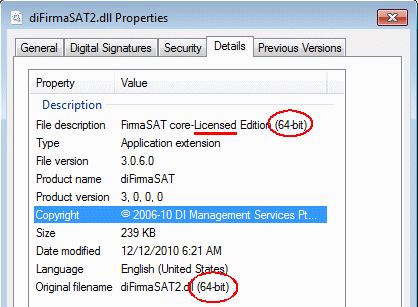
More on this in the table below. Make sure you are using the Licensed edition.
If you use the .NET interface with C# or VB.NET (VB2005+),
then you must also have the .NET library file
diFirmaSatNet.dll
in a directory where .NET will find it (usually the same directory as your application's .EXE file).
This .NET library DLL is compiled for all platforms, so there is only one version.
But, be warned, if you are developing on a 64-bit machine, it will go looking for the
64-bit core diFirmaSAT2.dll file.
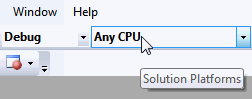
When compiling your .NET project in MS Visual Studio, make sure you set Solution Platforms to Any CPU
If you use the command-line utility program, then you need the executable FirmaSAT.exe to be
somewhere your application can find it. Make sure this EXE file is the same product version number as the core DLL.
For more background on installing on 64-bit systems, see Wow64: Background.
| 32-bit machine | 64-bit machine | Comments |
|---|---|---|
| Core DLLs required for all interfaces | ||
C:\Windows\system32:diFirmaSAT2.dll (32-bit) |
C:\Windows\system32:diFirmaSAT2.dll (64-bit) C:\Windows\SysWOW64:diFirmaSAT2.dll (32-bit) |
You must distribute these files with any application you make. These directories will always work.
When distributing your application, copy these files either (a) to the same directories on the target machine; or (b) to the same directory as your application's .EXE file.
You do not register these DLLs with |
| .NET library DLL | ||
C:\Program Files\FirmaSAT:
diFirmaSatNet.dll |
C:\Program Files (x86)\FirmaSAT:
diFirmaSatNet.dll |
Installed here on your developer machine by the setup.exe program.
When distributing your application, copy this file to the same directory as your application's .EXE file. You should have added a reference to this DLL in your project. If you do not use C# or VB.NET, you do not need to distribute this file. |
| Command-line executable | ||
C:\Program Files\FirmaSAT:
FirmaSAT.exe (32-bit) |
C:\Program Files (x86)\FirmaSAT:
FirmaSAT.exe (32-bit) |
Installed here on your developer machine by the setup.exe program and expected here by the
Start > All Programs > FirmaSAT > FirmaSAT-open menu option.
When distributing your application, copy this file to the same directory as your application's .EXE file, or somewhere in the environment path where your application will find it. If you do not use the command-line interface, you do not need to distribute this file. |
| Where to find other files (as installed by our setup program) | ||
C:\Program Files\FirmaSAT:
diFirmaSAT2.dll.win32.copy diFirmaSAT2.dll.X64.copy |
C:\Program Files (x86)\FirmaSAT:
diFirmaSAT2.dll.win32.copy diFirmaSAT2.dll.X64.copy |
Copies of the core FirmaSAT DLL. |
C:\Program Files\FirmaSAT\X64:
FirmaSAT.exe (64-bit) |
C:\Program Files (x86)\FirmaSAT\X64:
FirmaSAT.exe (64-bit) |
A version of the command-line utility program for a 64-bit system, should you need it.
Note that the 32-bit version will work OK on a 64-bit system provided you put the 32-bit files in the correct folders. Use this 64-bit version as you think fit. |
To comment on this page or to contact us, please send us a message.
This page last updated 12 August 2020.
